Create Assets from CSV with ChatGPT | A4B MCP Demo
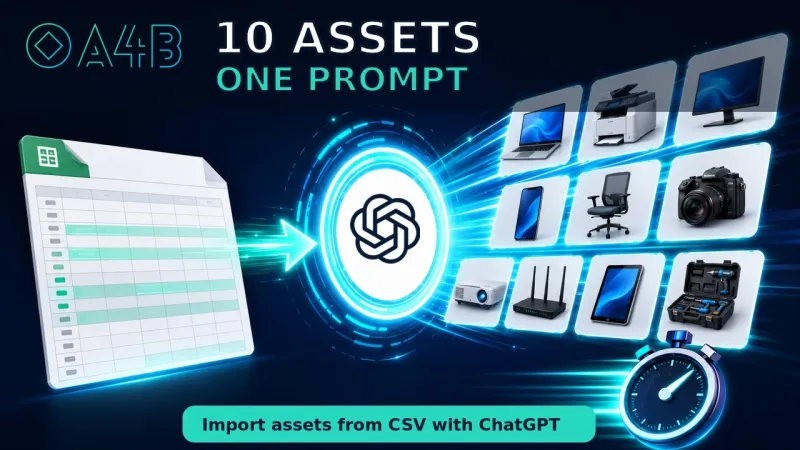
See how ChatGPT converts spreadsheet data into structured A4B asset records through the MCP integration.
Watch: Create Assets from CSV with ChatGPT | A4B MCP DemoNow available in the ChatGPT app directory
Use Claude Code, ChatGPT, and other AI assistants to query your assets, schedule maintenance, and generate reports — all through the Model Context Protocol (MCP).
MCP gives AI assistants direct, secure access to your asset management data.
Ask questions like "Which assets are overdue for maintenance?" and get instant answers from your real data.
Let AI create and update maintenance tasks, track schedules, and manage asset states.
AI reads your live asset catalog, maintenance schedules, organization stats, and activity history.
Claude Code, Claude Desktop, ChatGPT, and any MCP-compatible AI tool can connect.
Short demonstrations of the workflows described above, using real documents and spreadsheets.
Everything your AI assistant needs to manage assets and maintenance.
Query assets, search history, check maintenance schedules, get organization stats
Create and update assets, schedule and manage maintenance tasks
Three steps to connect your AI assistant.
Add the A4B MCP server URL to your AI tool's configuration file.
Log in to A4B and grant your AI client read or read-write access via OAuth 2.1.
Ask your AI assistant questions about your assets, create maintenance tasks, and more.
Connect your favorite AI tool in minutes.
Run this command in your terminal:
claude mcp add --transport http a4b-ai https://a4b.ai/mcpTwo options to connect Claude Desktop:
Option 1: Connectors UI (recommended)
Go to Settings → Connectors → Add custom connector. Enter https://a4b.ai/mcp as the server URL and complete OAuth authorization.
Option 2: claude_desktop_config.json
Go to Settings → Developer → Edit Config, and add this to your claude_desktop_config.json:
{
  "mcpServers": {
    "a4b-ai": {
      "command": "npx",
      "args": ["mcp-remote", "https://a4b.ai/mcp"]
    }
  }
}Or connect manually:
Go to Settings → Apps. Enter https://a4b.ai/mcp as the connector URL and complete OAuth authorization.
All clients handle OAuth authorization automatically on first connection. No API keys or secrets needed.
Your data stays protected at every step.
Industry-standard authorization with proof key for code exchange. No secrets stored on the client.
Choose read-only or read-write access. Tokens are scoped to your organization.
Every AI tool call is logged with user, organization, and timestamp.
Revoke AI client access anytime from Settings > Connected Apps.
How A4B's MCP server works, what AI tools connect, and how programmatic integration fits alongside ERP systems.
Ready to connect your AI assistant to your asset data?
Create your free account and start using MCP integration in minutes.